 Produuz.it Docs
Appearance
IFC Parsing Setup (IFC PS)
Why this exists
The IFC standard is open and versatile, and every BIM application exports it in its own way. What one exporter calls REFERENCE another writes as a property set value, and a stud can be recognised by its name in one file and by its profile in the next. An IFC Parsing Setup is how you tell produuz.it to read your files.
A company can have several setups, and each project uses one version of one. Open them in Projects Settings → IFC Parsing Setups, in the company menu under Settings. A setup that projects use is never changed in place: saving it creates a new version. See Versions.
The ? button at the top of the editor opens the help panel on the right, with what a setup is and how it is read. Tabs, sections and settings that have a longer explanation have their own ?, and the panel follows whatever you pressed last. The panel stays closed until you open it, and the editor remembers whether you left it open.
Let Claude write it for you
Building a setup from scratch is the slowest part of onboarding, and it is what the Claude connector is most useful for. Give Claude the property list of a few elements from your BIM application, describe your panels in your own words, and ask it for the setup. It writes a JSON file you upload with the UPLOAD button, and you check it tab by tab before saving.
How a setup is organised
The editor has seven tabs, in this order:
| Tab | What you set there |
|---|---|
| Hierarchy and project | How the file is split into modules and panels, where the names, phases and batches come from, and which assemblies are produced at all |
| Custom part branches | Your own kinds of part beyond the built-in ones |
| Panel part categories | Which elements are rails, studs, plates, bricks, openings and areas |
| Steel cage part categories | The same, for the steel cage flow |
| Part properties | Where each value of a part is read from |
| Custom part classes | Kinds of part you tell apart inside a category, and what they do to the panel measurements |
| Operations and machines | Which elements are nail lines, cuts and drills, and what the machine files read |
The filter box at the top left of each tab searches the settings by name, and also by the values inside their rules, so typing STIJL lands on every rule that uses it. The two tabs that hold a single list, custom part branches and custom part classes, show the list straight away.
Almost every setting changes what is stored on each design when it is analysed: the parts list, the part categories and branches, the measurements and the 3D viewer. Two kinds of section are different, and say so with a chip:
| Chip | What it means |
|---|---|
| Files only | A change here only reaches the machine files, drawings and reports made from then on, which read the setup every time. Moving a project to a version that differs only here analyses nothing. |
| Split | The setting is also read the next time the IFC files of a project are split. |
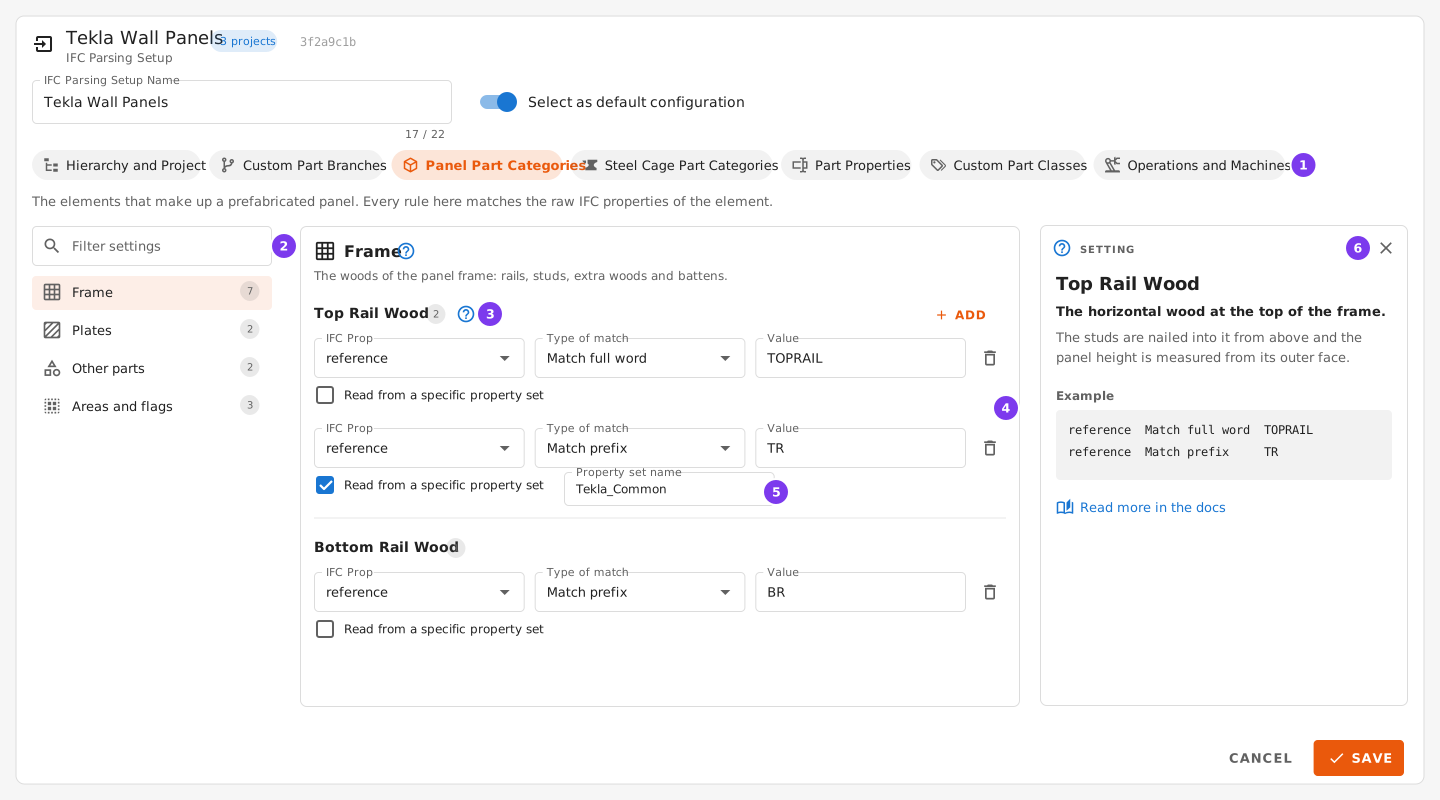
- The seven tabs.
- The filter, and the sections of the tab with how many settings each holds.
- A setting with its rules, and its help button.
- A rule: property, type of match and value. A part matches the setting when any one of its rules matches.
- A rule that reads one property set only. See Reading from a specific property set.
- The help panel. It follows the last help button you pressed.
The two kinds of entry
Almost everything in a setup is one of two things.
Rules
Used by categories, by the assembly filter and by the machine flags. Each rule has three fields:
- IFC Prop — the property to look into.
- Type of match — Match full word, Match prefix or Contains word.
- Value — what to look for.
A part matches the setting when any one of its rules matches.
Example
Two rules on the Top Rail Wood category:
| IFC Prop | Type of match | Value |
|---|---|---|
| REFERENCE | Match full word | TOPRAIL |
| REFERENCE | Match prefix | TR |
Parts with a REFERENCE of TOPRAIL, TR, TR12 or TR45 are top rails. TOPRAIL2, TOP_RAIL and 12TR are not.
Property names
Used by the properties. Here you only list the IFC property names that may hold the value, in order of preference. The first one present on the element wins.
Example
Two names on the Zone (layer) property, WorkPlane and Layer:
| Part | WorkPlane | Layer | Detected zone |
|---|---|---|---|
| P1 | 1 | 2 | 1 |
| P2 | (absent) | 3 | 3 |
| P3 | 1 | (absent) | 1 |
Case does not matter
Property names and values are matched case-insensitively. Reference, REFERENCE and reference are the same thing.
Reading from a specific property set
By default produuz.it looks for a property anywhere in the element: in any of its property sets, and among the element's own attributes. That is what you want almost always.
It becomes a problem when the same property name exists in two property sets with different values — the exporter's REFERENCE and your own REFERENCE, say. Then it is luck which one is read.
Every category rule, every filter and flag rule, and every property name has a Read from a specific property set checkbox for that case. The rules of custom part branches and custom part classes do not have it.
| Checkbox | Field | What is read |
|---|---|---|
| unticked | — | The property wherever it appears. The normal case. |
| ticked | Tekla_Common | That property set only. Another set carrying a property of the same name is ignored. |
| ticked | (left empty) | The element's own attributes only: name, ifc_tag, ifc_id, object_type, description. |
Tick it when you have a reason to. An unticked entry behaves exactly as it always has, and setups saved before this existed are untouched.
Hierarchy and project
How the file is split, what the pieces are called, and which of them you actually produce.
Levels detection
Says how elements are grouped into modules, assemblies and subassemblies. Each level has a Detection system and a Value: By IFC class (usually IfcElementAssembly), By part property, for exporters that write no containers at all, or By assembly property. When Update designs splits a building IFC, the Standard engine works with By IFC class and By part property on the assembly level, and the Legacy engine only with By IFC class. See Split building IFCs.
What the subassembly level finds, and what happens to it, is explained in Subassemblies.
Unit and project properties
Levels detection above says how a module and an assembly are recognised. These say what is read from each one once it has been: what it is called, which phase and batch it belongs to, and any extra values of yours that should travel with it.
They are read off the container — the module or the assembly — and not off its parts. Everything read off a part is in the Part properties tab.
Leave one empty and produuz.it falls back to its own default, which for a name is the container element's own name.
Module name
The properties holding the module design name, for example Modulenummer. Instances of the same design share this value.
Module unit ID
The properties holding the unique id of each module instance. Without it, modules sharing a name are merged into one and you get a warning.
It must be unique within the project, across all its IFC files. A unit ID is how produuz.it recognises a module from one file to the next: two modules with the same unit ID are taken as the same module and counted once.
Assembly name
The properties holding the panel name. Left empty, the container's own name is used.
Assembly unit ID
The properties holding the unique id of each panel instance, such as the element number your customer uses. Each assembly unit keeps it when it is generated, and it is used to recognise the same panel in a later IFC file.
It must be unique within the project, across all its IFC files: two panels with the same unit ID are taken as the same panel and counted once. Two buildings made from the same model need different unit IDs, for example A-101 and B-101. See How each file counts.
Phase Name
The property holding the phase a panel belongs to. Phases and batches are created from these values when the file is split.
Batch Name
The property holding the batch a panel belongs to.
Auto Parsed Client Meta
Properties copied onto the design as client data when the file is analysed. Useful for anything of yours that has no field of its own.
Module filter
The splitter always takes out everything the file holds: the modules, the assemblies in them and the assemblies outside them. Two lists leave modules out.
Split only these modules
Leave it empty and every module is split. With rules in it, only the modules matching one of them are split out as module IFCs.
Never split these modules
Modules matching one of these are never split out, even when the first list keeps them. The drop list always wins.
A module that is not split gives no module IFC and no module design. Its assemblies are still split, as the Assembly filter says.
A rule reads the module's name with the prop name, and the properties of its first assembly, such as the module number.
Example
Never split these modules: name starts with TEST
You get every module except the test ones, and the assemblies of the test modules are still split.
Assembly filter
A project file usually holds more than you produce: foundations, in-situ concrete, the building next door. Two lists decide what the splitter takes out of it.
Split only these assemblies
Leave it empty and every assembly is split. With rules in it, only the assemblies matching one of them are split out.
Never split these assemblies
Assemblies matching one of these are never split out, even when the first list keeps them. The drop list always wins, which is how you keep a whole prefix and still leave a few names out of it.
An assembly that is not split leaves nothing behind: no IFC file, no design, and nothing in the phase and batch counts.
Example
Split only these assemblies: ASSEMBLY_PREFIX starts with WA
Never split these assemblies: name contains _TEST
You get every wall except the ones whose name carries _TEST. Roofs, floors and everything else in the file are left alone.
Custom part branches
Branches are kinds of part beyond the built-in timber and plate: windows, connectors, airtightness, electrical, plumbing.
Each branch has a name, its own rules, the geometry it resembles — wood-like, plate-like or generic, so drawings, counts and cutting lists know how to treat it — and two switches.
Logistics enabled
The parts of this branch reach the parts list and go through logistics.
Counts in the panel measurements
The parts of this branch take part in the panel width, height, thickness and surface.
This exists because a branch is recognised before a part falls back to timber, plate or steel from its category. A part your setup recognises perfectly well as a window frame or a cladding profile can therefore have no category at all, and a part with no category is outside every measurement — which is why a panel can read thinner or smaller than it is, with no warning.
Leave it off for brackets, connectors and anything that sticks out past the frame: counting those makes the panel read wider and taller than it is. Turn it on for cladding, window frames and layers that are really part of the panel.
The measurements are not only a report figure
The rack loads are drawn from them. The width decides how many panels fit in a rack row and the thickness how deep the stack builds, so a panel measured short is a rack plan that does not fit on the floor. See: Delivery & Racks
It only decides whether the part takes part at all
Which measurements it is then left out of is a custom part class job. A window frame that should set the thickness but add no surface gets the switch here and a class with Ignore in surface. The branch says whether the part participates; the class says what it is out of. See: Custom part classes
Both switches are off by default
Turning this on changes the measurements of every panel holding parts of that branch, from its next analysis. Nothing moves until you tick it.
Panel part categories
The elements that make up a prefabricated panel. Every rule here matches the raw IFC properties of the element — its Name, Reference, Material and the rest, exactly as the modeller exported them.
Frame
Top Rail Wood
The horizontal wood at the top of the frame. The studs are nailed into it from above and the panel height is measured from its outer face.
Bottom Rail Wood
The horizontal wood at the bottom of the frame. The panel's zero height is its outer face.
Extra Top Wood
Woods over the top rail, usually fitted after the studs are nailed.
Extra Bottom Wood
Woods below the bottom rail, usually fitted after the studs are nailed.
Wood profile
Any wood of the frame that is not a rail, a batten or an extra piece: the studs, noggins and diagonals. This is the category the framing nail matrix applies to.
Extra Frame Wood profile
Additional frame woods that are not part of the standard framing.
Wood Batten
Battens fixed on the panel.
Plates
Plate
A sheet fixed on a face of the frame: OSB, plasterboard, fibreboard. Its layer decides the zone it is machined in.
Core Plate
A plate inside the frame rather than on a face, such as a shear panel.
Other parts
Bricks / Stones
Single bricks or stones.
Opening
Placeholders for doors and windows. They are not produced; they tell the machines where the frame has a hole and give the reports their opening list.
Areas and flags
Elements that are not produced but change how a panel is handled.
Lockout Area
Areas the machine must not work on.
Isolated Area
Areas that carry insulation.
Skip Framing Wood
Parts that would fall into the frame by geometry but must not be counted as framing wood.
Hiding and ignoring a part are on the classes now
Hidden Material and Ignored Part used to be categories here. They never said what a part is, they said how to treat it, so they are class behaviours — Ignore this part completely and Hide in the 3D viewer. Setups that had the old categories were moved across and behave exactly as they did.
Not Isolated Area is gone too. Nothing ever read it.
Steel cage part categories
A secondary flow. Leave it empty if you do not produce steel cages.
Top Steel Profile
Bottom Steel Profile
Steel Profile
Steel Plate
Welding Seam
Compute holes
Whether the holes of the profile are computed for the machine file.
Assembly ID Level1
Assembly ID Level2
The two levels of assembly id of a steel cage.
Part properties
Where produuz.it reads each value of a part from. Each entry is a list of IFC property names, tried in order.
Identity
Part Name
The name produuz.it uses for the part, shown in the parts list, the reports and the machine file templates.
Leave it empty and the part keeps the name the IFC element itself carries. Fill it in when the useful name lives in a property set instead, for example ELEMENT_NAME or Beschrijving.
- The IFC name is always kept. It stays visible in the part drawer, in the Unknown parts dialog of the viewer, and as its own optional column in the parts list.
- It does not change how parts are classified. The category and branch rules always match against the raw IFC properties. To match on the property you mapped here, add a rule on that property's own key.
Reference
An id expected to be the same across parts of the same shape. Usually reference in Tekla Structures, and available in other exporters too.
One reference is one shape within the project: two parts with different shapes must never share a reference.
Material Name
The material of the part.
Profile Name
The name of the shaped section, for profiles that are not rectangular.
Profile Joined
Whether the profile is extended or joined to another one.
Zone (layer)
The panel layer a part belongs to. 0 is the frame, and the layers on each face are numbered outwards from it: 1, 2 on the outside face (the front) and -1, -2 on the inside face (the back). The zones decide which face of the panel is its front, in the viewer, the drawings and the machine files. See Panel Sides and Coordinates.
Most IFC files write that layer with a letter instead of a sign, usually F for the front face and B for the back one. produuz.it reads the letter: a value holding a B becomes a negative zone, and anything else stays positive. So F must be the outside face and B the inside face.
| IFC value | Detected zone |
|---|---|
F1 | 1 |
F2 | 2 |
B1 | -1 |
B2 | -2 |
Back2 | -2 |
1 | 1 |
-1 | -1 |
Letters and other characters are stripped, so only the B changes the result. A value that already carries a minus sign is used as it is.
WARNING
The B rule applies to every numeric property, not only the zone. Keep a B out of the values you map to Nail/Screw CTC, Mill/Saw depth, Isolation order number and Tool ID, because it would turn them negative.
Positive side zones
Negative side zones
BTLx only. BTLx layer numbers come as plain numbers with no sign, so these two rule lists declare which layers belong to each face of the panel.
Details
Finish
The finish of the part.
Comment
A free comment shown with the part.
Weight (kg)
The weight of the part in kg. Some exporters write it in the element property sets (Weight, GEWICHT), others export only the volume.
Volume (m3)
The volume of the part in m³. Exported by nearly every application, and what a weight can be derived from when the exporter writes none.
Isolation order number
The order in which insulation areas are filled.
Custom part classes
A category says what a part is: a stud, a rail, a plate. A class says how your factory treats it. They are two different questions, and a part answers both at once.
Classes are entirely your own. Nothing is built in and nothing is detected automatically: a part is an I-beam only because a rule you wrote says so.
Give each class a name and add the rules that recognise it, with the same kind of rule as the categories. A part can match several classes. Its name is the first class in the list whose rules match, so put the more specific classes first. Its behaviours add up from every class it matches. A part that matches no class simply has none, and that is normal.
A class does two things.
Its name is what other settings look up when they behave differently per kind of part — the framing nail matrix of the machine setups first of all. See: Mobi One
Its behaviours say what the class does to the panel measurements. That is the Behaviours button on each class.
Behaviours
Every panel carries four measurements: its width, its height, its thickness and its surface. By default every part counts in all four. A behaviour takes the parts of one class out of one of them — or out of produuz.it altogether.
Whole part
| Behaviour | What it does |
|---|---|
| Ignore this part completely | The part never reaches the parts list, the reports or the machine files. Use it for helper geometry, annotations and anything the modeller exported by accident. |
| Hide in the 3D viewer | The part is still measured and still produced, it is only not drawn. Use it for insulation, foils and fillers that would cover the frame. |
Measurements
| Behaviour | What it leaves the part out of |
|---|---|
| Ignore in surface | The net area, the gross area and the opening areas of the panel |
| Ignore in width (X) | The width of the panel |
| Ignore in height (Y) | The height of the panel |
| Ignore in thickness (Z) | The thickness of the panel |
They are all off by default, and off means the part counts — which is what every part did before behaviours existed. Turning none on changes nothing.
The measurements are not only a report figure
The rack loads are drawn from them. The width decides how many panels fit in a rack row and the thickness how deep the stack builds, so a panel measured short is a rack plan that does not fit on the floor. See: Delivery & Racks
The four are separate because the measurements are separate, and that is what makes the useful cases possible.
Placeholder layers
The case behaviours were built for. Some modellers add a layer to a panel that is not produced but occupies the space a real one will take — an insulation layer, a finish, a service cavity.
That layer has to count for the thickness, because the panel really is that thick. It must not count for the surface, because nothing was produced.
Give it a class, turn on Ignore in surface, Ignore in width and Ignore in height, and leave Ignore in thickness off. The panel keeps its real thickness and its surface stops counting a layer nobody built.
A part that sticks out
A bracket or an anchor that reaches past the edge of the panel makes it read wider than it is. Give it a class and turn on Ignore in width, and only that one. It still counts everywhere else.
The class row shows what it ignores without opening anything, so a setup is readable at a glance.
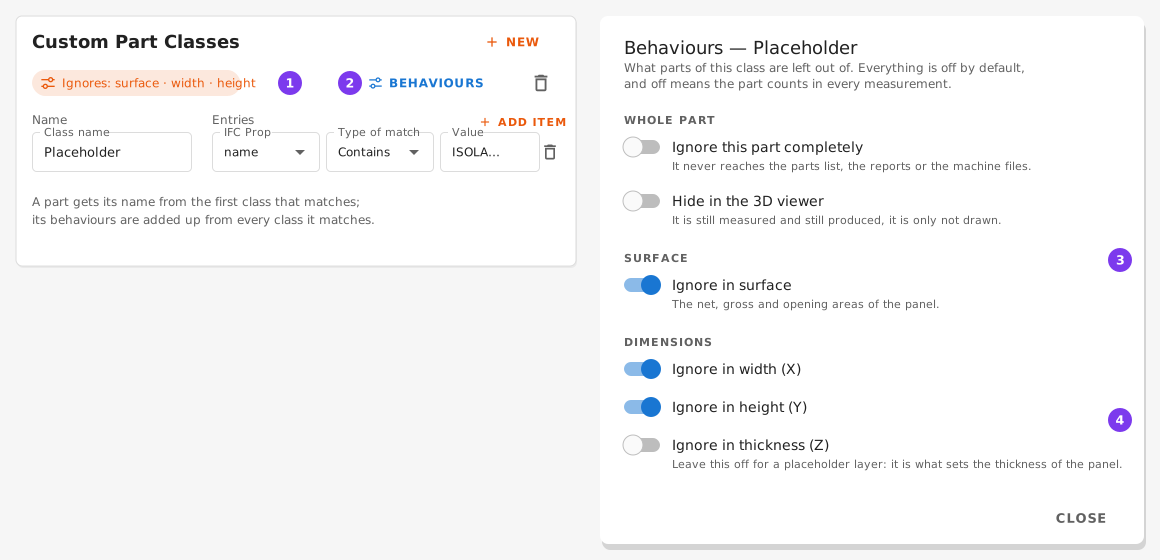
- The summary of what the class ignores.
- Behaviours opens the dialog.
- The surface: the net, gross and opening areas.
- The three dimensions. For a placeholder layer, leave the thickness on.
When the numbers change
Panel measurements are worked out during the analysis of a design, not when you look at them. Saving the setup relaunches the analysis of the projects that use it, and the new numbers appear when it finishes.
If your company has Launch analysis automatically turned off in the company settings, nothing is relaunched and the old numbers stay until you launch the analysis yourself.
Operations and machines
Nail lines, saw cuts, drills and glue are modelled as elements too. These rules tell them apart from parts, and the properties below feed the machine files directly.
They are never measured
An operation says what a machine does, not what the panel is made of, so nothing here counts towards the width, height, thickness or surface of a panel. A saw mark that hangs below the bottom rail does not make the panel taller.
Operation lines
Frame Nail Lines
A group of frame nails represented as a line. The line goes through the heads of the nails.
Frame Nail Singles
A single frame nail represented as a line. The line goes through the body of the nail.
Plate Nail Lines
The same as frame nail lines, for nails into the plates.
Plate Screw
Lines representing screws, read like the nail lines.
Glue lines
Glue lines, used for bricks.
Glue areas
Areas to be covered with glue.
Cutting and milling
Frame Saw
Saw cuts on the frame.
Frame Drill
Drills on the frame.
Milling
Milling lines.
Sawing
Sawing lines on the plates.
Drilling
Drilling operations.
Machine parameters
Nail/Screw CTC
The centre-to-centre distance in nail and screw lines.
Mill/Saw depth
The depth of a milling or sawing line.
Tool ID for mob2 nailing
The tool the MOB2 machine must use for the nailing.
Frame Saw Size
The side of the frame the saw works on.
Brick Type
The type of the brick.
Machine flags
Each of these has an IFC property and, beside it, a BTLx rule list that does the same job for BTLx files.
Bricks: Machine Flag
Bricks: Machine Flag (BTLx)
A brick that is machine built rather than laid by hand.
Isolation: Machine Flag
Isolation: Machine Flag (BTLx)
Insulation applied by the machine.
Battens: Machine Flag
Battens: Machine Flag (BTLx)
Battens fitted by the machine.
Milling: V-Mill
Milling: V-Mill (BTLx)
A milling line that must be done as a V-mill.
Skip Framing Wood is on the other tab
It follows the same pattern — one IFC property and one BTLx rule list beside it — but it sits with the areas and flags, on Panel part categories.
BTLx files
BTLx files are read with the same setup, with two differences:
- No property sets. BTLx parts carry plain attributes, so the Read from a specific property set checkbox is not offered on the BTLx rules, and a rule that names a property set never matches a BTLx part.
- Zones need declaring. BTLx layer numbers have no sign, so the face of the panel comes from the Positive side zones and Negative side zones rules instead of from a letter.
The settings that are BTLx-only are marked with a BTLx chip in the editor.
Versions
A setup is shared by every project that uses it, and the machine files, drawings and reports of those projects read it every time they are made. So a setup that projects use is never changed in place.
Saving
The setup is validated before it is saved. If something is missing — a rule with an empty value, typically — you get a message and the editor opens the tab holding the offending field and scrolls to it.
- A version that projects use shows a banner, Version 3 is used by 24 projects. Saving it opens Publish version 4: it lists the sections you changed with their chips and lets you write what changed. Publishing creates version 4 and no project changes: they all stay on version 3. Nothing is analysed.
- A version that no project uses is saved as it is, for example a version you have just published and not used yet.
- The name, the default and the locks belong to the setup and all its versions. Change them from the setups list: Rename, Set as default, Lock. They never analyse anything.
New projects start on the newest version of the default setup, from the moment it is published.
Upgrading projects to a version
Moving a project to another version is the only way a change to a setup analyses designs. Choose Upgrade projects in the ⋮ menu of the setup row, or choose Publish and upgrade projects… when you publish.
The window lists the versions with their notes, and the projects that are on an older version. For each project it shows how many designs will be analysed, how many units are in production and how many are ready. The button says what the move costs, Upgrade 2 · analyse 228 designs, and the window estimates how long it takes. Projects with units in production are marked and are never ticked for you.
- When the two versions differ only in Files sections, the window says Files only. No analysis. and the move analyses nothing.
- Archived projects keep their version for good. They are counted, and cannot be moved.
- Changing the setup in the project form is the same move for one project. When designs would be analysed, Save asks first and shows the same figures.
- When Analyse new IFC files automatically is off for your company (Company → Viewer settings), you launch every analysis by hand, so upgrading a project analyses nothing. The window says how many designs need an analysis; run it from the Designs view, where those designs show the version they were analysed with.
The analysis reads the latest revision of each design, plus older revisions that still have units not ready. It skips subassemblies, which their panel analyses, and designs with no model file.
Ready parts are kept
An analysis never changes a part that is ready or in a started part batch: that part is the record of what was cut. When the new version sees it differently, the design shows N ready parts kept, and the design panel lists each part with what the analysis would have changed. Parts that are not ready follow the new version.
Outdated designs
Each design remembers the version it was analysed with. In the designs list, a design analysed with an older version than its project's shows that version as a chip, such as v3, and its ⋮ menu offers Analyse. While designs of a project are being analysed, a bar above the list shows how many are done.
History
Every change to a setup is recorded with who made it and when: creating it, publishing a version (with the sections it changed and its note), editing a version no project uses, renaming, setting the default, locking and unlocking, deleting a version, and upgrading projects to a version (which projects, from which version, and how many designs were analysed). Open it with History in the ⋮ menu of the setup row. The versions list of Upgrade projects also shows who published each version. The { } button of the history shows it as JSON, to copy or download.
The name is kept even if the account is later deleted or moves to another company. Setups changed before the history existed show No author recorded until their next change. Each project's own history also records when its setup changed, from which version to which, and who did it.
Try on a design
Before saving, Try on a design in the editor reads one design with the current version and with what you are editing, and shows the difference: parts per branch, category and class, the parts in the parts list and the measurements. Nothing is saved. It takes up to a minute.
Moving a setup around
The ↓ button on a setup row downloads it as a JSON file, and UPLOAD in the toolbar reads one back in. That is how you copy a setup between companies, keep a version outside the platform, or have Claude write one for you.
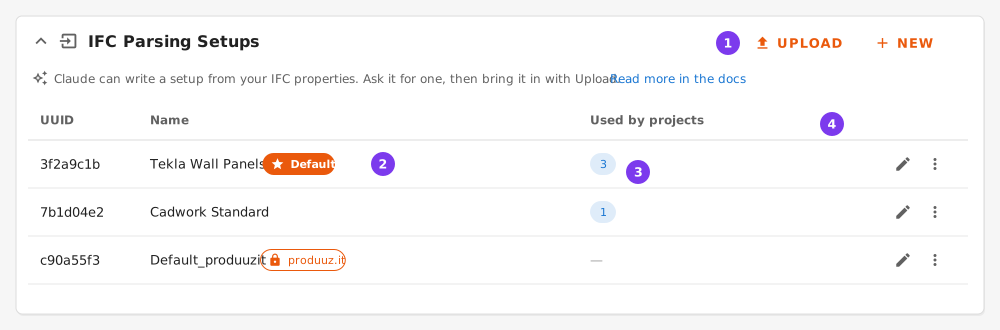
- UPLOAD reads a setup file in.
- The default setup of the company.
- How many projects use the setup. Hover it to see which.
- The row actions: edit, and the ⋮ menu with clone, download JSON, lock and delete.
The list shows one row per setup with its newest version, and how many live projects are on each version: just the number for the newest version, and 6 on v3 for an older one. The ⋮ menu has Upgrade projects, which opens the window to move projects to the newest version, and Rename and Set as default. A setup can only be deleted when no project uses any of its versions.
New, clone and upload ask for the name first, and a clone or an upload is a new setup at version 1. Uploading saves nothing on its own: the file opens in this same editor, and it exists when you press Save.