 Produuz.it Docs
Appearance
Reports
Reports let you generate documents from your project data — Bills of Materials, production spreadsheets, QR stickers, quality control PDFs, and more.
Creating a Report
- Go to Production files (machine files and shop-floor documents) or Management files (quality, worktime and issue reports). Both exist inside a project and company-wide, under the Files section of the menu.
- Click New file.
- In the report form dialog:
- Select the Report Type (e.g., Plates BoM, Production Excel). The list only shows the types of the view you are in, and machine files only when one of your machines produces them.
- Optionally add a Document comment and pick a Document status (For information, For ordering or Temporary). In PDF documents the status is printed in the page header and the comment on the cover page. The comment is also added to the file name.
- Configure the Document settings specific to the report type.
- Choose which assemblies or modules to include.
- Click Submit to queue the report for generation.
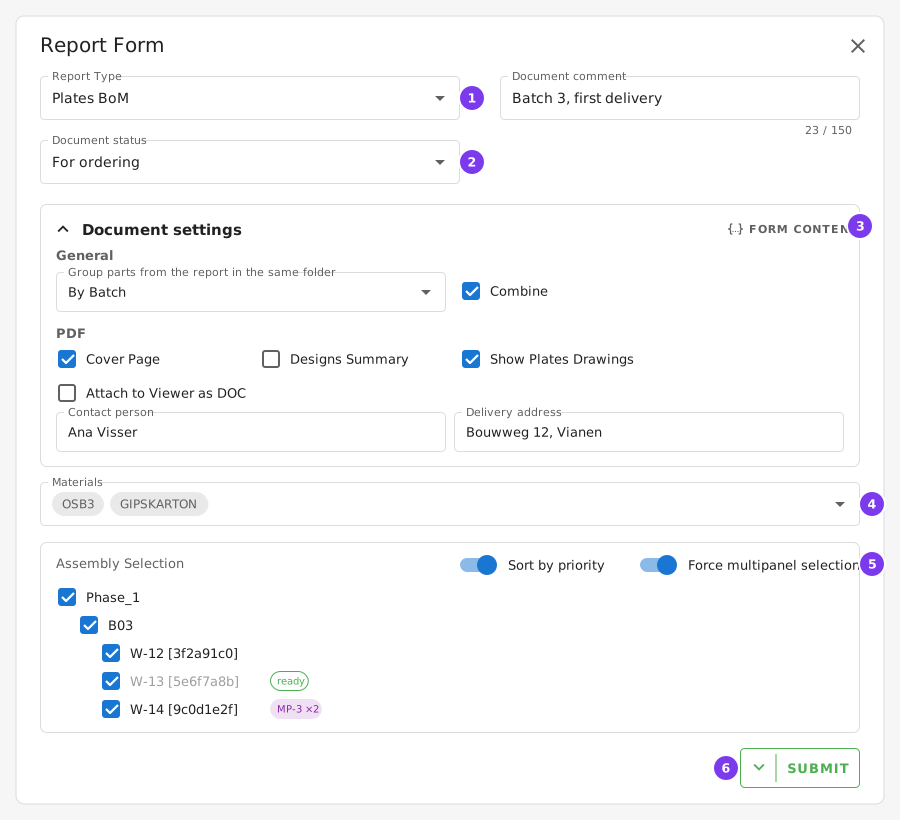
- The Report Type.
- The Document status, printed in the header of PDF documents.
- The Document settings of the type. Form Content shows them as JSON.
- More choices for some types: here, the materials to include.
- The assemblies or modules to include. Ready ones are marked, and so are multipanel groups.
- Submit. The arrow next to it holds Save without generating (see the tip below).
TIP
When you edit an existing report (⋮ → New revision), the arrow next to Submit offers Save without generating. It stores the changed settings without creating a new version. Submit saves them and generates a new version. For a new report, both start generation.
File Defaults
Each document type has a set of options — cover page, how parts are grouped, table style, paper size, and so on. File settings lets you set what those options start at, per type, for the whole company.
Open File settings in the Files section of the company menu, expand File defaults, and pick a type. The types are listed under Production documents and Management documents. The form is the same one you see when creating the file. Save, and every new file of that type starts from your values.
- A type with nothing saved shows System defaults and uses the values built into Produuz.it.
- A type you have configured shows Custom defaults. Reset puts it back to the system values.
- Files already created keep the settings they were saved with. Changing a default never changes a document you generated earlier.
- Files generated from a template use these defaults too.
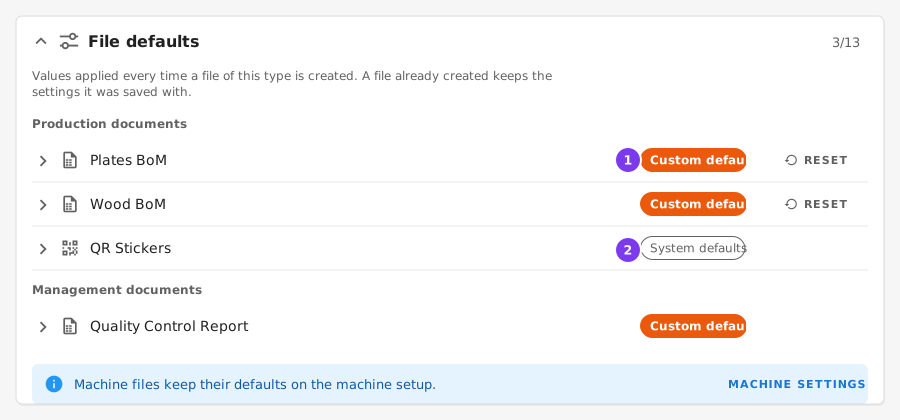
- A type with defaults of your own. Reset puts it back to the system values.
- A type that uses the values built into produuz.it.
Machine files are not in this list. Their options depend on the machine model, so their defaults live on the machine setup, in Production settings → Machine Settings.
Generation Templates
A generation template is a saved set of files you always create together — for example a Plates BoM, a Wood BoM and the QR stickers for the same panels. Instead of filling the report form three times, you pick the template, select the panels once, and every file in it is queued in one action.
Templates are managed in File settings → File generation templates, under the Files section of the company menu. Each file in a template is one document type, plus the machine or production line it should use when the type needs one.
To use one, open a project and click Run template in Production files or Management files, choose the template, select the panels and click Generate. You can also create a template on the spot with New template in that same dialog. Templates run inside a project only: in the company-wide views the dialog asks you to pick a project first.
Report Status
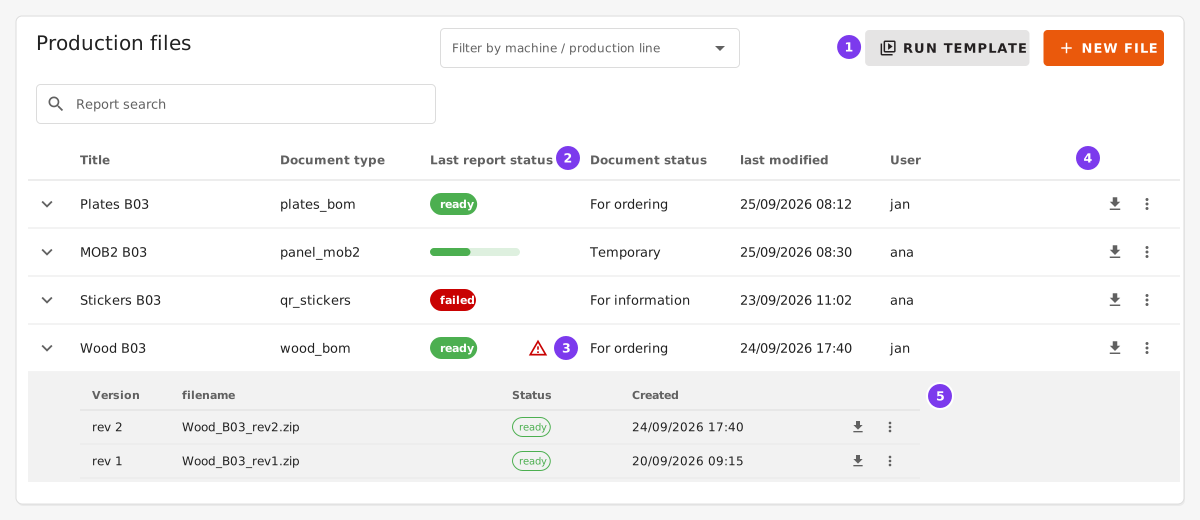
- Run template and New file. The field next to them filters the list by machine or production line.
- The status of the last generation: a chip, or a bar while it is working.
- A newer IFC arrived for some of the designs in this report. Hover it to see which.
- The row actions: download. The ⋮ menu holds new revision, generate again, clone, report metadata, set as final and delete.
- The versions of the report, under an expanded row.
Once submitted, a report goes through these stages:
| Status | Meaning |
|---|---|
| initializing | Queued for processing; the job will start shortly |
| Working | Being generated (a progress bar is shown) |
| ready | Successfully generated — use the download button |
| failed | An error occurred during generation |
When a report fails, or is made with problems listed in its ERRORS.md, whoever launched it gets a notification. A report launched by an automation notifies the admins and managers who have Errors in automatic tasks on.
Document status
The Document status column is separate from the generation status. It says what the document is for: For information, For ordering or Temporary. ⋮ → Set report as final sets a report as Final; on a final report it is greyed out.
Report detail
Click a report's title (on a phone, tap the row) to open its detail panel on the right. It shows the report without changing anything:
- Summary: the name, the type, the generation status, the document status, the author, when it was created and last changed, and how many versions it has. Download and More hold the same actions as the row.
- Warnings: how many items were left out of the file (see ERRORS.md inside it), and the designs that have a newer IFC than the one in the file.
- Made with: the settings the report was generated with, such as the production line, the machine, the dates or the materials. More → Report metadata shows all of them as text.
- Units: the units in the report, grouped by phase and batch. Each batch shows how many of its units are in the report and a bar with how many are ready, working and waiting. Click a batch to see its units, and a unit to open it.
- Versions: every version, newest first, each with its own download and ⋮ menu.
The panel has its own address, so a link to it can be shared, and the browser's back button closes it.
Versioning
Each time you regenerate a report, a new version is created: with ⋮ → Regenerate, or by editing it and pressing Submit. All previous versions are kept. Expand the row, or open the report's detail, to see the version history, where each version (rev 0, rev 1, …) can be downloaded or deleted. The download button in the row always gives the latest version.
Design Updates
If a design's IFC file is updated after a report was generated, a red warning icon appears next to the report's status. Hover it to see which designs have a newer IFC. The same icon marks those panels in the report form. Regenerate the report to include the latest design changes; the warning then goes away.
Content Selection
Most reports require you to select which content to include:
- Assemblies / Modules — Select items from the project tree (phase → batch → panel). Panels that are already ready are greyed out and marked ready. Sort by priority orders the tree by production order. QR Stickers can include modules; the other reports work on assemblies.
- Part Batches — Some reports (Plates BoM, Wood BoM, Accessories BoM, the Wood and Plates CSVs and several machine files) have a Select by Part Batches switch to select part batches instead, which groups parts across assemblies.
- Rack loads — Rack Load Stickers are made for rack loads, picked from a list.
Project Reports vs. Company Reports
Project reports are generated from a specific project's data. Inside a project, every report type is available, including all Bills of Materials, stickers and machine files.
Company reports are made in the company-wide Production files and Management files, when you need data across all projects. Only these types are offered there:
- Production Excel (Production files)
- Worktime Excel (Management files)
- Quality Control Report (Management files)
- Issues Report (Management files)
If your company plans production by date, the company-wide views offer the project types too. There you pick panels by production line and a From / To date range instead of a project tree.
Report Types
Bills of Materials
PDF documents listing the parts needed for your constructibles:
- Plates BoM — All plate parts with quantities and dimensions.
- Wood BoM — All wood/profile parts.
- Per-Design BoM — One BoM per unique design.
- Accessories BoM — Accessories and hardware list.
- Custom Woods CSV — Wood parts exported as CSV.
- Custom Plates CSV — Plate parts exported as CSV.
- Custom Accessories CSV — Accessories exported as CSV.
Other Reports
- Production Excel — Spreadsheet with one row per panel and its dimensions and areas.
- Worktime Excel — Production time per panel, or per panel and station.
- Quality Control Report — PDF summarizing quality control records.
- Issues Report — PDF listing all issues found during production.
- QR Stickers — Printable QR code labels for panels and modules, and Rack Load Stickers for rack loads.
Machine Files
Machine-specific file formats for CNC equipment. See Machine Files for how they are made and every format.