 Produuz.it Docs
Appearance
Claude connector (MCP)
Connect Claude to produuz.it and ask about your own production in plain language: which panels in the Meerhoven project are still waiting on parts, what did line 2 finish yesterday, which batches are late.
The connector uses MCP, the standard Claude uses to talk to other systems. You add it once, sign in with your produuz.it account in the browser, and Claude answers from your company's live data.
What it can and cannot do
Your production data is read-only. Nothing the connector does can change a panel, a part, a batch, a checklist or a proof. That is not a setting you can change: there is no write path to any of it.
| It can | It cannot |
|---|---|
| Read projects, batches, panels, modules and parts | Change, create or delete any of them |
| Read production status and kit completeness | Start or finish production |
| Read dashboards, today's timeline and issues | Touch a checklist or a proof |
| Create temporary download links for your files | Delete anything, ever |
| Search this documentation | See any other company's data |
There is one exception, and it is asked for separately: creating an IFC parsing setup. See Creating a parsing setup below.
Everything it reads is scoped to your company, exactly like the app. It reads with your account, so it sees what your account is entitled to see and nothing beyond it.
What you need
An MCP licence on your user account. Licences are per person and your company has a number of seats, like the Android or Tekla ones.
Ask your company administrator to give you a seat: in Company settings → User accounts, they edit your account and pick MCP (Claude connector) in Licenses. The list shows how many seats are left.
TIP
Taking the licence away ends the connection. If somebody leaves, removing their seat cuts their connector off at its next request, without anybody having to find and revoke a token.
Adding the connector
In claude.ai
- Open Settings → Connectors → Add custom connector.
- Paste the URL:
https://back.produuz.it/api/v2/mcphttps://back.produuz.it/api/v2/mcp - Claude opens a produuz.it page asking you to approve the connection. Check the account and company it names, read what it will be able to do, and press Allow.
On Team and Enterprise plans an owner adds the connector once for the whole organisation, and each person then signs in with their own account. Everybody sees their own company's data, never each other's.
In Claude Code
bash
claude mcp add --transport http produuzit https://back.produuz.it/api/v2/mcp --scope userclaude mcp add --transport http produuzit https://back.produuz.it/api/v2/mcp --scope userThen run /mcp inside Claude Code and follow the browser prompt to sign in.
In Claude Desktop
Same as claude.ai: Settings → Connectors → Add custom connector, with the same URL.
The consent screen
Before anything is connected, produuz.it shows you what you are about to approve:
- which application is asking, and whether produuz.it has reviewed it;
- which account and company is being connected — worth a look, because many people have more than one account and the wrong one would show Claude the wrong company;
- whether the access is read only. If it is not, which only happens with the parsing-setup permission, a warning says so in the same place;
- what it will be able to do, in plain words;
- what it will never be able to do;
- where you will be sent back to, and how to disconnect later.
The request expires after 10 minutes; the screen shows the time left next to the Deny and Allow buttons.
If you do not have an MCP licence, the screen says so rather than failing with an error code, and Allow is disabled.
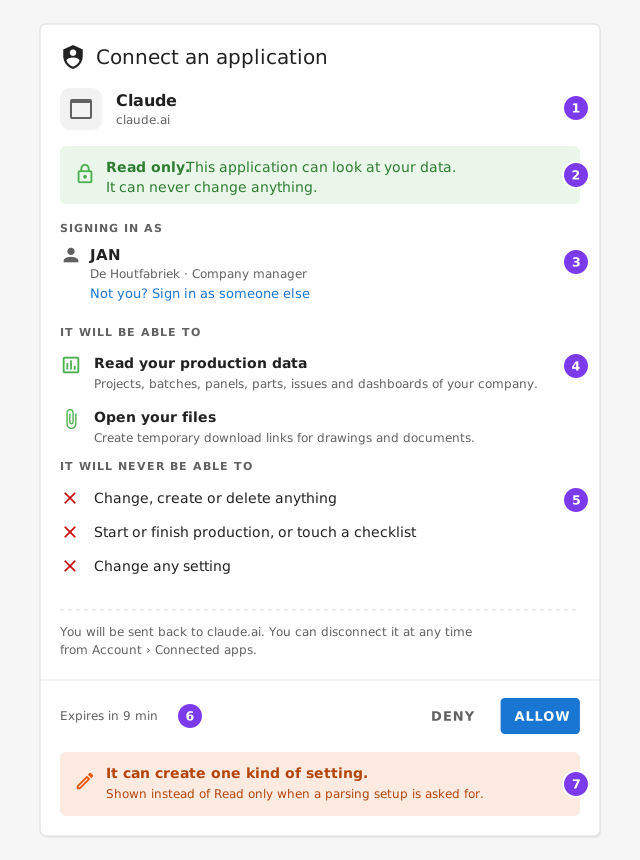
- The application asking. A not reviewed chip appears next to it when produuz.it has not reviewed it.
- Read only: this connection can look and never change.
- The account and company being connected. Check it before you press Allow.
- What it will be able to do.
- What it will never be able to do.
- The time left before the request expires.
- When the connection also asks to create parsing setups, this orange notice replaces the green Read only one.
Things you can ask
Once connected, ask Claude in your own words. It picks the right lookups itself.
- Which panels in project 24031 are not built yet, and how many are waiting on parts?
- What did each station finish today?
- Show me the open issues on the Meerhoven project.
- Which batches on line 2 are behind their delivery date?
- How many panels were finished each week over the last quarter?
- What does "kitted parts" mean in produuz.it?
- Write me an IFC parsing setup for these Tekla properties.
That last one works because the connector can also read this documentation. When a produuz.it word needs explaining, Claude looks it up here rather than guessing.
Building an IFC parsing setup
This is the one job the connector is best at, and it is worth calling out on its own. A parsing setup is how produuz.it reads your IFC files, it has seven tabs of rules, and building the first one is the slowest part of onboarding.
Claude can write the whole thing. Paste in the property list of a few elements from your BIM application — one stud, one rail, one plate, one panel — describe what marks each kind of part, and ask for the setup.
It works because the connector reads this documentation, which carries every key of that file and what each one means.
You can also hand Claude a setup you already have and ask why a part lands in the wrong category, or which rules never match anything.
Creating a parsing setup
Claude can put the setup straight into your company settings, instead of handing you a file to upload. This is the only thing the connector can create, and it is fenced in on every side:
- It asks for a separate permission the first time it tries. You get a consent screen that says plainly that the connection is no longer read-only, and you can refuse it and still use everything else.
- It needs a company administrator account. If yours cannot create a setup in produuz.it, it cannot create one here either.
- It only ever creates. It cannot change a setup that exists, cannot make one the default, and cannot assign one to a project.
- The new setup is attached to nothing. No project uses it, so no design is re-analysed and no panel moves. It sits in Projects Settings → IFC Parsing Setups until you open it, check it and assign it yourself.
So the worst a mistake can do is leave an unused setup in your settings — the same thing the Upload button has always been able to do.
You can still prefer the file
If you would rather nothing was written at all, just ask Claude for the JSON and upload it yourself. Deny the permission and that is what you get.
See: The setup file (JSON) · IFC Parsing Setup
Disconnecting
Two ways, either is enough:
- In produuz.it — Account → Connected apps lists everything you have approved, what it can do and when it was last used. Press Disconnect.
- In Claude — remove the connector.
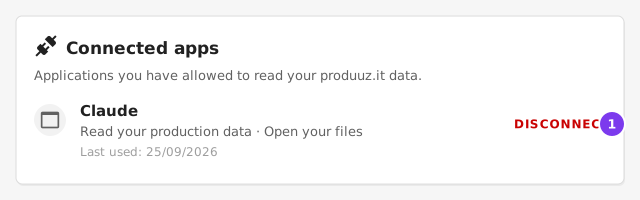
- Disconnect ends the connection straight away.
Disconnecting in produuz.it takes effect immediately, whether or not the other side cooperates.
Documentation without an account
There is a second connector that serves only this documentation and needs no produuz.it account at all:
https://back.produuz.it/api/v2/mcp/docshttps://back.produuz.it/api/v2/mcp/docsIt is useful if you are evaluating produuz.it, or helping somebody who has not been given an account yet. It only reaches these public pages — never any company's data.
Security
- You sign in on produuz.it. The application you are connecting never sees your password.
- The permission is bound to your account and your company, and is checked on every single request rather than once at connection time.
- Your production data is read only end to end. No panel, part, batch, checklist or proof can be changed through the connector by any means.
- The two things that are not plain reading each need their own permission, asked for only when a request actually needs one — so a connector that just answers questions never asks for either, and you can refuse one and keep the rest:
- download links, because a link can be opened by anybody holding it until it expires;
- creating a parsing setup, because it writes something into your settings.
- A permission you approved before either of those existed does not cover them. Access is checked against what you actually approved, on every single request.
- You can revoke everything from Account → Connected apps at any time.