 Produuz.it Docs
Appearance
Quantities / BoM Matrix
The Quantities view lets you plan how many of each design to produce across project phases and batches. It uses a matrix layout where you define quantities before generating the actual constructibles.
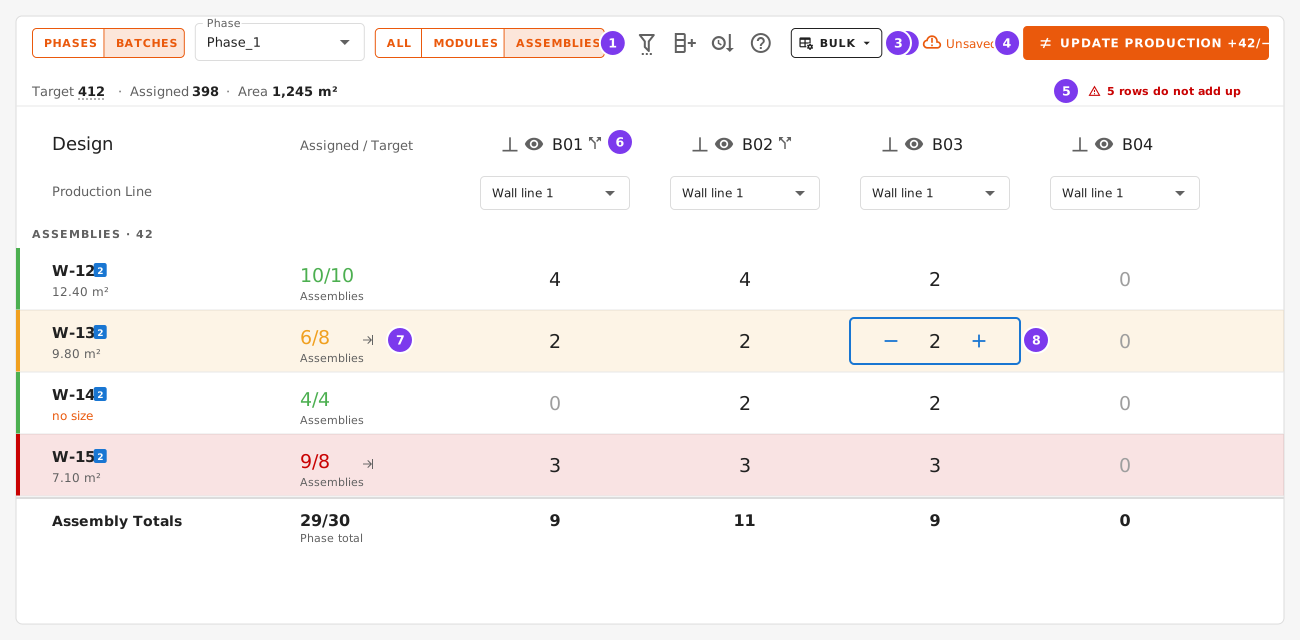
- The axis (Phases or Batches, with the phase), and which designs to show.
- Filter, add a column, sorting, the keyboard help and the Bulk menu.
- The save state. See Managing Quantities.
- Update production, with what it would create and delete. See Saved is not the same as in production.
- The status bar: target, assigned, area, and the rows that do not add up.
- A batch column. The split icon means the batch has name prefixes.
- Assigned / target of the design, with the button that balances the row.
- The selected cell, with
−and+.
Matrix Layout
The matrix is organized as:
- Rows — Design names, grouped into modules and assemblies. Only the latest revision of each design is shown, plus any older revision that still has units in the project (its revision icon is red).
- Columns — Project phases (or batches, depending on the view).
- Cells — The quantity count for each design × phase combination.
- Totals — Row totals (all phases for a design) and column totals (all designs in a phase).
View Modes
Two buttons in the toolbar switch the axis: Phases shows the project phases, Batches shows the batches of one phase, picked in the Phase selector beside them. The choice is kept in the address bar, so a reload or Back keeps you where you were, and a phase view can be bookmarked or shared.
Next to them, All / Modules / Assemblies chooses which designs are listed.
Phase View
Shows a high-level summary with one column per project phase. Each cell shows the total quantity of a design across all batches in that phase.
Batch View
Select a specific phase to drill down into its batches. Each column represents a batch, showing the detailed quantity breakdown.
Managing Quantities
- Edit cells — The − / + buttons appear on the cell you point at, and on the cell you select. Click the number, or just start typing, to enter one. Only whole numbers of zero or more are accepted.
- Add phase — The toolbar button in the phase view creates a new project phase. You can optionally pick a phase template (see below) to pre-fill its batches.
- Add batch — The same button in the batch view creates a new batch within the selected phase.
- Column menu — Click a phase or batch name in the header row to rename it, Set multiple numbers for several designs at once, clone it or delete it. The batch menu also has Prefixes and Hide batch (a hidden batch is not shown in the viewer).
- Rename a phase — the phase, all its batches, its numbers and its phase template are renamed at once. If something goes wrong, nothing is renamed. A name that another phase of the project already has is refused.
- Delete a phase — deletes its batches first, then the phase. A phase that still has batches is never deleted.
- Sort phases — the sort button opens the list of phases; drag them, or sort them by name, and save. The new order is used everywhere the phases are listed: the matrix, the viewer, reports, stickers and machine files.
- Bulk → Load numbers from project splitter — Replaces the matrix with the counts stored by the IFC splitter.
- Bulk → Reset numbers (to actual existing constructibles) — Recalculates the matrix from the units that already exist. This also deletes the quantities saved on the project, so it asks for confirmation first.
Quantities are saved automatically a couple of seconds after you stop editing. The toolbar shows Unsaved, Saving… or Saved, with a Save button while there is anything pending, and it also saves when you leave the view.
Saved is not the same as in production
Saved means your numbers are stored on the project. It does not mean the panels exist: the matrix is a plan, and the units are only created or deleted when you press Update production.
So the Update production button says whether the two agree:
- When they do not, it is filled and carries the difference —
Update production +42 / −3, units to create and units to delete. Hover it for the detail. - When they do, it is drawn in a lighter style, because pressing it would change nothing.
There are two ways to make them agree:
- Update production — create and delete units so production follows the matrix.
- Bulk → Reset numbers (to actual existing constructibles) — discard the numbers and read them back from the units that exist.
The numbers on the button are what Update production would actually do, so a difference it reports is always a difference you can act on.
The project menu shows the same figures on Production Counts from any page of the project, so you see that production does not follow the matrix without opening it. While designs are being created and revised by Update designs, it shows a lock instead: the matrix is locked until the update ends, and says so.
Keyboard
| Key | Action |
|---|---|
| Arrow keys | move between cells |
| Tab / Shift+Tab | next / previous column |
| Enter / Shift+Enter | next / previous row |
| type a digit, or F2 | overwrite the value |
| + / − | step the value by one |
| Delete | set to zero |
| Esc | cancel editing, or clear the selection |
| Ctrl+D | copy the selected value down the column |
| Ctrl+V | paste a column of numbers copied from Excel |
| Ctrl+Z | undo |
| Ctrl+Y or Ctrl+Shift+Z | redo |
A fill-down, a paste, Set multiple numbers or Auto-allocate by prefix all undo in a single step. The ? button in the toolbar lists all of this.
Reading the matrix
The second column shows assigned / target for each design, frozen next to the design name. It turns green when the two match and amber (or red, in the batch view) when they do not — that is the number to watch while filling the matrix. In the batch view the target of a row is its phase quantity.
Above the matrix, a status bar totals the project: target, assigned, area, and how many designs do not add up. Hover the target figure to see which IFC file each part of it came from.
Where the target comes from
The target is the number of units the IFC splitter found for each design, over every project IFC split in this project. It updates by itself every time you split a file.
A unit that is in several files counts once: produuz.it recognises a unit by its unit ID (see Assembly unit ID and Module unit ID), or by its IFC GlobalId when it has none. Nothing else: a unit with neither is never recognised in another file, and a project whose IFCs carry no IDs has its quantities filled in by hand. See How each file counts.
Unit IDs must be unique within the project, across all its files: two units with the same unit ID are the same unit. Two buildings made from the same model need different unit IDs.
In the Bulk menu, under Project totals, Set totals into the matrix (phase view only) writes each design's project total into the phase columns.
Under Project matrix are the actions that change your plan rather than the targets: Load numbers from project splitter and Reset numbers (to actual existing constructibles).
How each file counts
Nothing has to be chosen. Each split file is compared with the older ones:
- Order. A file is newer when its IFC was exported later, by the time written in the IFC header. When the header has no time, the upload time is used.
- Updated. A unit that is already in an older file is the same unit: it counts once and takes its design, phase and batch from the newest file.
- New. A unit no older file has is added: the file is another part of the project.
- Not in the newer file. Units of an older file that a newer one does not hold keep counting. Nothing is removed automatically. When a new export replaces an older file, delete the older file: its units that are not in the new one leave the targets with it.
| v1 | v2 | Counted |
|---|---|---|
| W-101, W-102, W-103 | W-101, W-103, W-104 | W-101, W-102, W-103, W-104 |
v2 updates W-101 and W-103 and adds W-104. W-102 is not in v2 and keeps counting until v1 is deleted.
In Files, the Split units column shows how many units each split project IFC holds and what it did: Update +12 when it updates an older file with 12 new units, +212 new when it is a new part, Not counted when it is switched off. A click on that chip, or How it counts in the row's ⋮ menu, opens the details: what the file did, the units of an older file it does not hold, units with no ID, and unit IDs the file repeats.
The details end with one switch, Counts for production. Switch it off for a file that should not count, such as a reference model: the file stays and its units leave the targets. Switch it on again to count them. Archived projects keep their counts and cannot be changed.
Projects without targets
A project you never split has no targets, and neither does a design you added by hand. Those rows show only the number you assigned: no target, no colour, no balance button, and they are not counted as not adding up. The status bar drops the target figure too. Nothing to compare against, nothing claimed.
The same applies per design, so a project where only some designs came from a split judges those and leaves the rest alone.
Balancing
- Balance a row — an unbalanced row has a button next to its assigned/target figure. It spreads the difference over the columns that already carry a number, keeping their proportions. If the row has nothing allocated yet, it all goes on the first column.
- Balance all — when rows do not add up, the status bar shows a red N rows do not add up button. It opens Balance all in the batch view and Set totals into the matrix in the phase view. Both are also in the Bulk menu, and both show which designs will change, and by how much, before you commit.
When a phase has many batches the matrix scrolls sideways. The design name and the target/assigned column stay frozen on the left, the header row stays on top, and the grand total stays pinned at the bottom.
Phases and batches
Every batch belongs to one of the project's phases. A phase is renamed, sorted or deleted as a whole, so a batch never loses its phase. Projects whose batches had lost their phase before this got those phases back, at the end of their phase list.
Phase templates and automation
These tools speed up setting up a phase and filling its batches. Add panels for module counts is in the Bulk menu of the phase view, and Auto-allocate by prefix in the Bulk menu of the batch view.
Phase templates
A phase template is a reusable set of batches, defined once per company. Each batch in the template has a name and an optional list of name prefixes and a production line.
Templates are managed in Projects Settings → Phase templates, in an expandable section at the bottom of the page, and are available to all the projects of the company. When you create a phase, choosing a template automatically creates its batches in that phase, including their prefixes.
A phase created from a template shows a magic-wand icon next to its name. Open the phase menu and choose Set phase template to see which template is applied or to apply a different one — its batches are created or updated to match.
Batch prefixes
Each batch can carry the name prefixes used for auto-numbering. A batch with prefixes shows a split icon next to its name. Open the batch menu and choose Prefixes to view or edit them. Templates fill these in automatically, but you can adjust them per batch at any time.
Add panels for module counts
In the phase view, set how many of each module you want in a phase, then choose Bulk → Add panels for module counts. The panels each module contains are taken from the module's own parsed contents and set on the same phase, multiplied by the module count. This works whether you used the project splitter or only the module splitter.
A dialog asks whether to set the numbers in batches too:
- Also batches — set the phase totals and also distribute them into the phase's batches by prefix (so you can generate right away).
- Only phases — set just the phase totals and leave the batches untouched.
- Close — do nothing.
The panel totals are recalculated from the module counts each time, so clicking the button again does not double the counts.
Hover the tree icon next to a module's name to see its decomposition — the panel (assembly) design names and how many of each the module contains.
Auto-allocate by prefix
In the batch view (with a phase selected), choose Bulk → Auto-allocate by prefix to send each design's phase number into the batch whose prefix matches the design name. When a name matches several prefixes, the longest (most specific) prefix wins. Designs that match no batch are reported and left unassigned.
Together these give a simple flow: place module numbers on a phase → add the panels for those modules → switch to the phase's batches and auto-allocate by prefix → update production.
Updating production
Once your quantities are defined, click Update production to create the actual assembly and module instances based on the matrix counts.
The dialog works on one level at a time: choose Modules or Assemblies at the top. It shows how many units will be created and how many deleted, then the detail per phase and batch, before you commit.
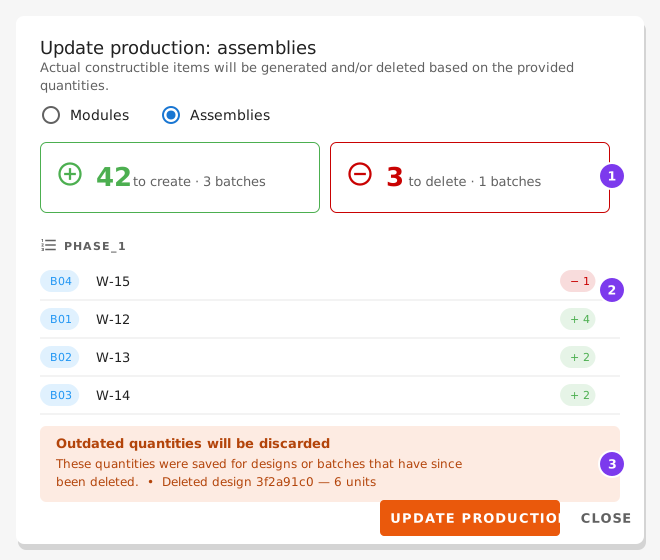
- How many units will be created and deleted.
- The detail per phase and batch. Deletions come first.
- Quantities saved for designs or batches that no longer exist. They are discarded.
WARNING
For every design, the batch quantities of a phase must add up to that phase's quantity. If they do not, the dialog lists exactly which designs and phases are off and by how much, and generation is blocked until you fix them.
Your saved quantities are only cleared once the units have actually been created. If generation fails, they are kept and you can retry.
Order of the new units
Update production sets the production order of each batch it touches:
- In a batch that was empty, the units are sorted by design name.
- In a batch that already had units, those keep their order, and the new units go after them, sorted by design name.
- Numbers in a name are read as numbers, so
W2comes beforeW10. - Each subassembly unit goes right after its panel.
You can change the order afterwards in Production Planning.
Quantities are saved against the designs and batches you wrote them for. Deleting a design, a phase or a batch deletes its quantities too. If one is deleted while the matrix is open, the dialog lists its numbers as outdated quantities that will be discarded. Pressing Update production drops them and creates the rest.
IFC elements, buildings and storeys
Each new unit is linked to an element of the split IFC files: a free one of its design, from the same phase and batch first. The unit keeps the element's unit ID and GlobalId, shown in the IFC card of the unit and in the Unit ID column of the constructibles lists, which appears when a unit has one. The dialog says how many of the new units get an element; the rest are created without one. It also says how many existing units are no longer in the IFC. When units are deleted, those go first.
Below that, one line says which buildings and storeys the new units go to. By default produuz.it uses the building already linked to that IFC building in this project, or creates one with the IFC name, and does the same for each storey. An IFC building with a placeholder name, such as Default building, gets no building. Open Advanced: buildings and storeys to choose, for each IFC building and storey, Create (with the name you want), Assign to existing, or No building / No storey. The project remembers the choice, so the next Update production proposes the same.
Units made before
Units generated before this existed have no IFC element. Tick them in Constructibles and use Link to the IFC: each gets a free element of its design, from the same batch first. The window says how many can be linked, and which buildings and storeys they go to, before you confirm. Units that already have an element are never changed.
Area Metrics
The matrix shows areas in square meters next to the counts: the gross area of each design next to its name, the area per column in the assembly totals row, and the total assigned area in the status bar. This helps estimate material requirements and production workload.